Buggie for Mac

Stop writing bug reports. Say it while you test.

Buggie is a Mac app that records while you test your app. Say what should change, or circle it on screen. Each remark becomes a task for your coding agent, with the clip attached.

Try now!

Early-access download · macOS 14 or later

The Buggie film, in chapters

Buggie’s own screens. The shop and the notes app are demos, and the agents’ work is illustrated.

How it works

You test and talk. Buggie writes it up.

  1. 1

    It keeps recording.

    Buggie sits in the menu bar and keeps the last few minutes of your screen. You choose 1 to 5 minutes. Older footage is overwritten. The recording never leaves your Mac. Only the moments you capture do.

  2. 2

    You talk and point.

    Say what should change. Circle it, draw or add a note with the markup tools (⌥T). Prefer to type? Press ⌃⌥B to open the quick window.

  3. 3

    Buggie writes the task.

    Each remark becomes its own capture, a ready task for your agent: a bug, a feature or an improvement. It has a title, a description, the clip, your words and marks, your clicks and keystrokes, and console errors when Chrome is connected. Three remarks in one recording make three captures.

    You said

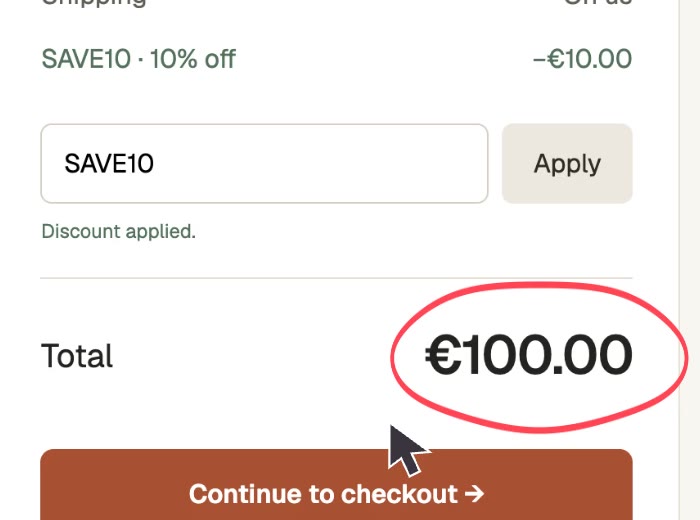
    “Okay, so, um, I applied the discount, but the total is still, uh, a hundred euros. Wait, no, it should be ninety.”

    Buggie wrote

    Bug

    The discount isn’t updating the total

    Clip · transcript · 1 circle · 1 click

    Example remark.

  4. 4

    Your agent fixes it. You check.

    Hand the task to a coding agent, AmpCode Orbs or your tracker. The Latest panel shows what needs you, what is in progress, what you handed off or saved for later, and what is done. An agent can even ask you a question.

For your coding agent

What your agent receives.

Coding agents on your Mac connect to Buggie over MCP, an open standard that lets agents use outside tools. You ask your agent to work on your Buggie tasks. It pulls the next one and reads the same evidence you saw.

A coding agent works one Buggie task Illustrated
  1. list_pending_handoffsOne task is waiting: “The discount isn’t updating the total”.
  2. claim_taskThe agent claims it, so no other agent starts it too.
  3. get_reportThe title, the type, your words and the clip. It also says which parts were recorded and which are the AI’s interpretation.
  4. get_evidenceYour marks, clicks and typing, and console errors, each with its time in the clip.
  5. ask_tester get_answerOnly when it’s unsure. The question shows up under “Needs you” in the Latest panel.
  6. post_result“Fixed.” The branch and a short note go back to Buggie.

get_report returns

{
  "title": "The discount isn’t updating the total",
  "type": "bug",
  "voice_transcript": "I’ve applied the discount, but the total
    is still a hundred euros. This should be ninety.",
  "clip": { "duration_seconds": 21, "mark_offset_seconds": 14.6 },
  "provenance": { "report": "ai_interpretation", "clip": "recorded" }
}

get_evidence returns

{
  "drawings": [ { "t": 15.1, "tools": ["Circle"] } ],
  "input_events": [
    { "t": 6.2, "kind": "typing", "typed_characters": 6 },
    { "t": 7.9, "kind": "click", "element": "Apply" }
  ],
  "console": []
}
Illustrated and shortened. The tool and field names are the ones Buggie uses. Buggie never starts your agent: the agent calls Buggie.

Count the steps

One bug, three ways to report it.

The discount code is accepted, but the total stays at €100. Here is what it takes to get that bug to your coding agent.

With Buggie:

  1. Say it while you test: This should be ninety.
  2. Circle the total, if you like.
  3. When you’re ready, press Fix.

Done. The clip, your words and the circle go with it. You never stopped to write anything.

By hand:

  1. Stop testing.
  2. Take a screenshot.
  3. Draw an arrow on it.
  4. Open the issue tracker.
  5. Write the steps to reproduce.
  6. Attach the screenshot.
  7. Paste the link into your agent.

Done. Now, where were you in the test?

In a chat with your agent:

  1. Describe the page.
  2. Describe what you clicked.
  3. Say what you expected.
  4. Copy the errors from the console.
  5. Explain it all again when it asks.

Done, probably. It still hasn’t seen your screen.

Drag to compare

The ticket you would write. The capture Buggie makes.

Same bug, same minute of testing. Drag the handle to see both.

A ticket by hand has fourteen fields. Most of them stay empty. The one that matters says “total is wrong??”.

A Buggie capture fills itself in. The clip, your words, your circle and your clicks are already there. You wrote none of it.

Demo shop. The capture is an example of what Buggie writes.

Where tasks go

Your agent pulls the task. Or Buggie sends it.

Each capture has two buttons. Fix sends it to a coding agent. Issue files it in your tracker. You can choose a different place for each capture.

Coding agents on your Mac pull it.

Claude Code, Codex, Cursor Agent, OpenCode, the Amp CLI and others connect to Buggie over MCP. When you ask, your agent takes the next task, reads the report and the clip, and posts the result back. Buggie never starts them. See what your agent receives

AmpCode Orbs fix it in the cloud.

Orbs are Amp’s coding agents that run in the cloud, not on your Mac. Pick AmpCode Orbs, and Buggie starts the fix for you.

Or it goes to your tracker.

File it as an issue in GitHub, GitLab, Linear or Jira.

Privacy

Only what you capture leaves your Mac.

Stays on your Mac

  • The rolling recording. It keeps the last 1 to 5 minutes, overwrites the rest, and never leaves your Mac.
  • Your API keys, in the macOS Keychain.

Leaves your Mac

  • Each capture, so the AI can write the task. When you press ⌃⌥B or say a remark with the mic on, that capture goes to the AI you chose: your coding agent, ChatGPT (with your sign-in), or OpenAI or Gemini (with your API key). It holds the clip, your words, your marks, and the clicks and keys recorded with it, plus console output and network requests when Chrome is connected. This is on by default. You can turn it off in Settings.
  • The finished task, only where you send it: your agent or your tracker.
  • Passwords stay hidden. Secure input fields are never visible to Buggie.
  • Keystrokes, your way. Buggie logs what you type, only the keys you press, or nothing. You choose.
  • One app at a time. When you record one app, nothing typed in other apps is stored.
  • Sites you exclude. Buggie keeps no console output, network requests or errors from them.
  • Speech. macOS turns it into text, on your Mac itself where supported.

Your next bug report is one sentence.

Buggie is in early access.

Try now!

Early-access download · macOS 14 or later

⌃⌥B capture⌥T markup tools

Questions

Short answers.

Does Buggie start my coding agent?

No. Agents on your Mac, like Claude Code, Codex or Cursor Agent, connect to Buggie over MCP and pull tasks when you ask them to. The one exception is AmpCode Orbs: there, Buggie starts the fix in the cloud.

Which AI turns my remarks into tasks?

You choose: the coding agent already on your Mac, a ChatGPT sign-in, an OpenAI API key or a Gemini API key. Keys are kept in the macOS Keychain.

What leaves my Mac?

Only what you capture. Each capture goes to the AI you picked, so it can write the task. This is on by default. You can turn it off in Settings. The finished task goes only where you send it. The rolling recording never leaves your Mac.

Do I have to talk?

No. Circle, draw or add a note on screen with ⌥T, or press ⌃⌥B and type. Talking is optional. The mic button in the capture bar turns it on or off.

Can an agent ask me a question?

Yes. The agent uses the ask_tester tool. The question shows up under “Needs you” in the Latest panel, and your answer goes back to the agent.

What do I need?

A Mac with macOS 14 or later. Buggie is in early access, and updates install themselves.